Plutonium is a module for foundry vtt that allows you to download assets from 5eTools.
Below is a step by step for creating a character in foundry and using plutonium to download racial features, class features, etc.
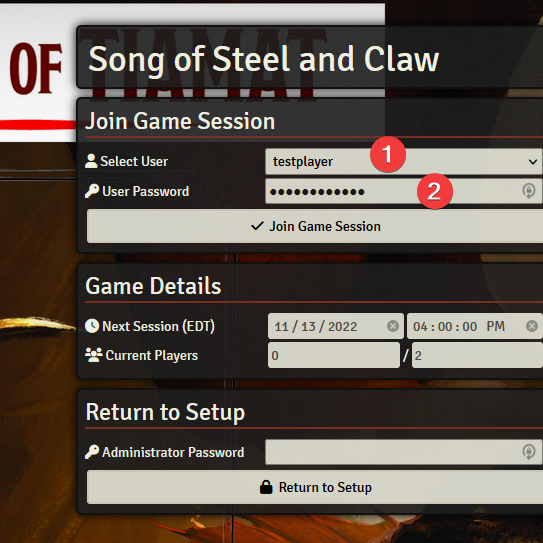
- Log into foundry with your username and password
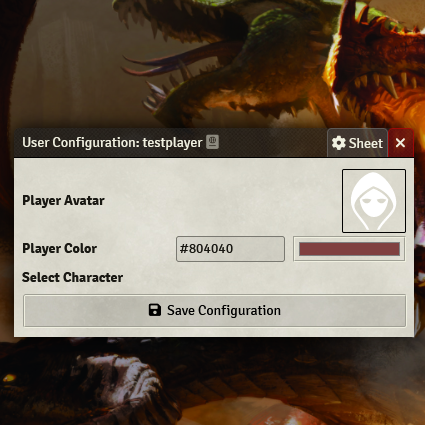
- If this is your first time logging in you will be asked to choose a player color
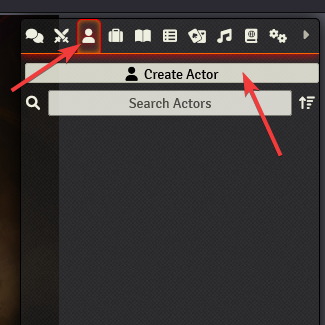
- Go to the tabs on the top right (bottom for mobile) and choose the actor tab. Click on the "Create Actor" button.
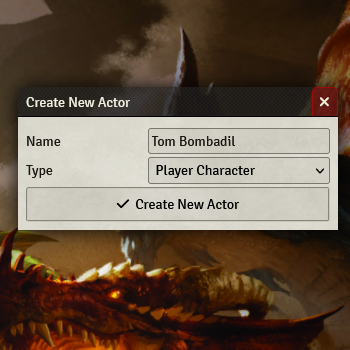
- Name your character. The type should be "Player Character". Click "Create New Actor"
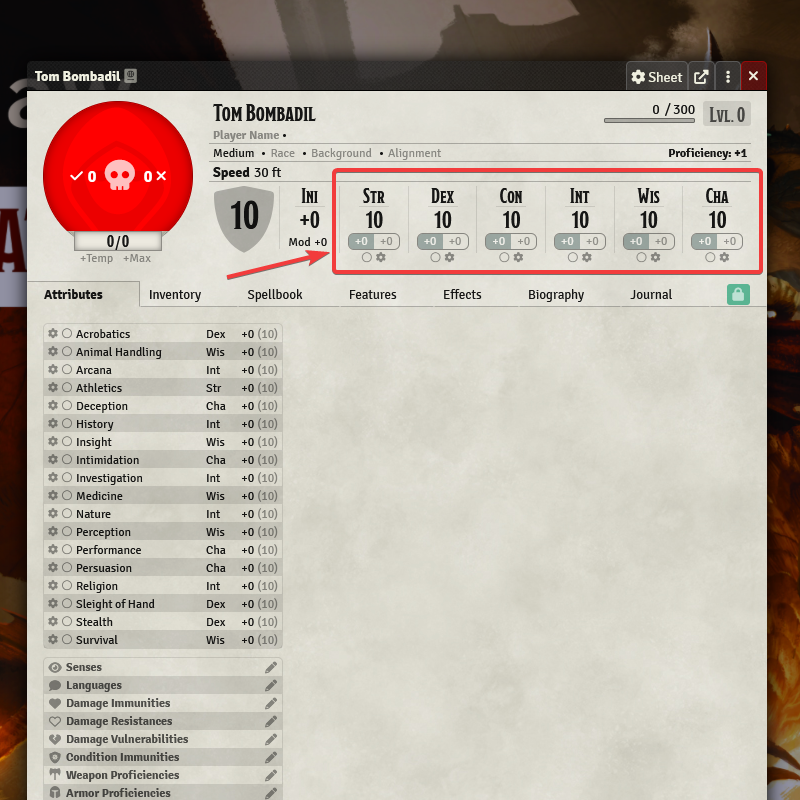
- Manually enter your starting stats, before any racial, class or level bonuses.
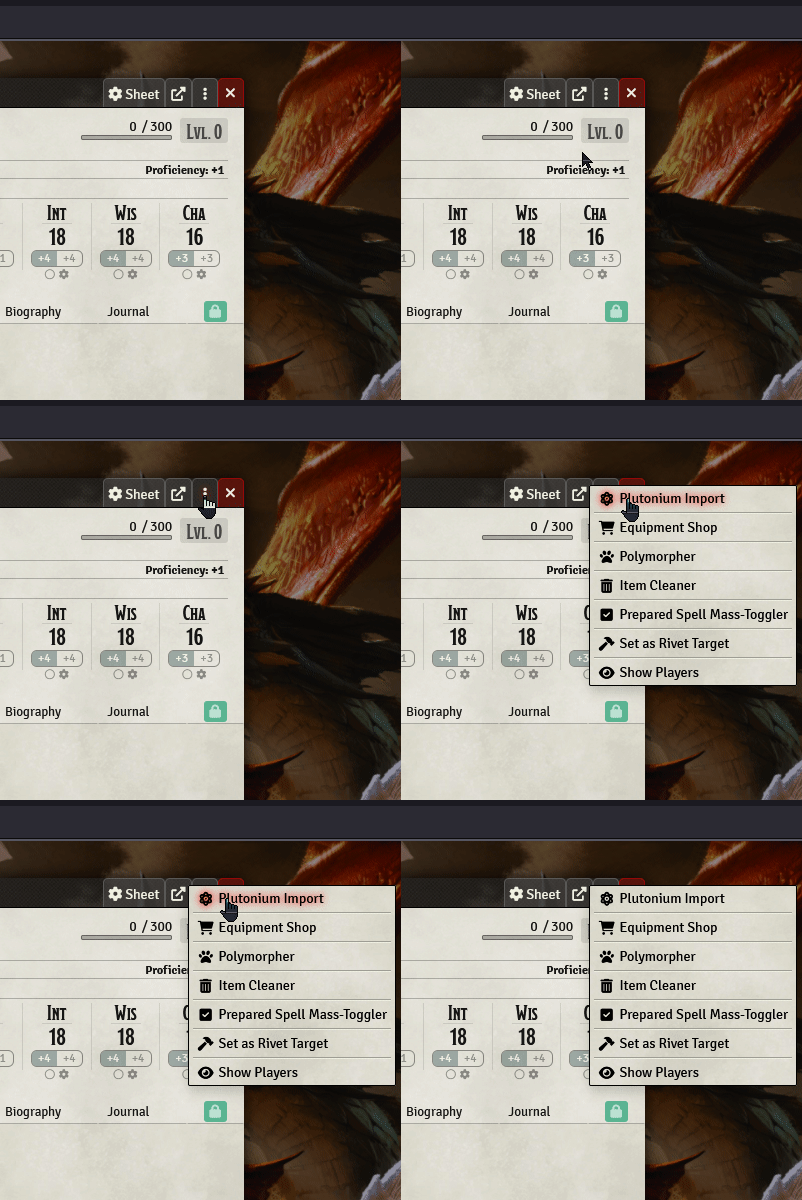
- Go to the button with the three virtical dots on the top right of your character sheet. Click it. Then Click the plutonium import button
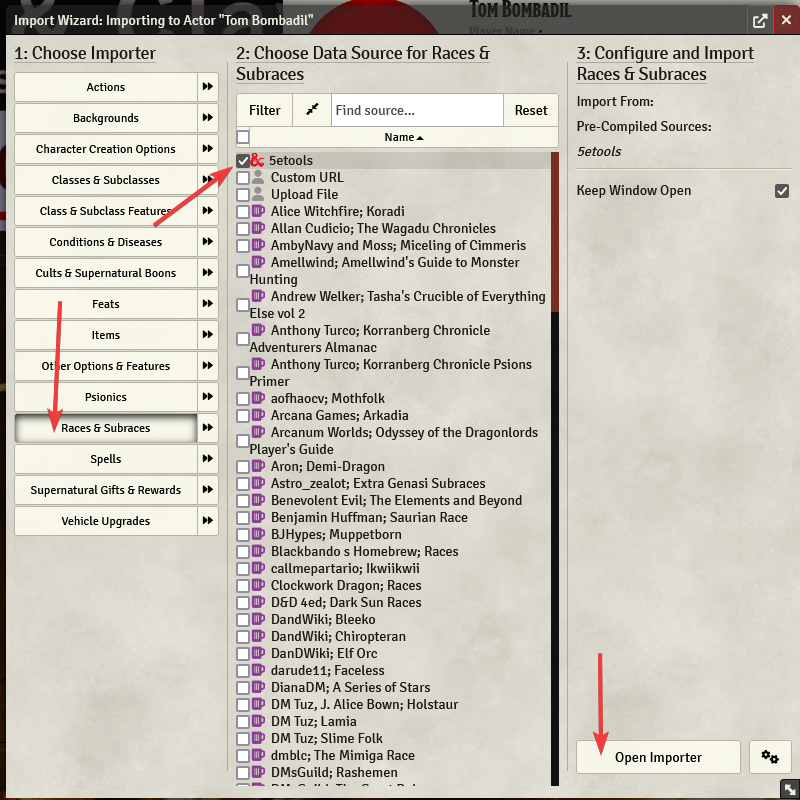
- Start by choosing a race. In the import wizard, click "Races and Subraces". With "5eTools" checked, click "Open Importer"
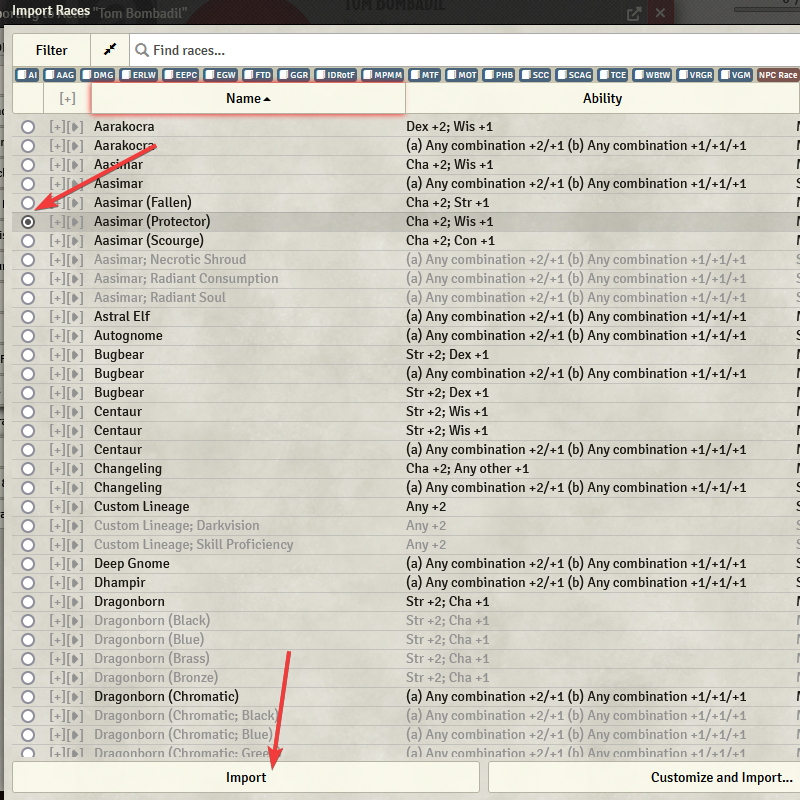
- Choose your preferred race and click "Import". The [+] button allows you to see more info on the variation you have chosen. You can search using the search box at the top. Accept the prompt to apply ability score modifiers.
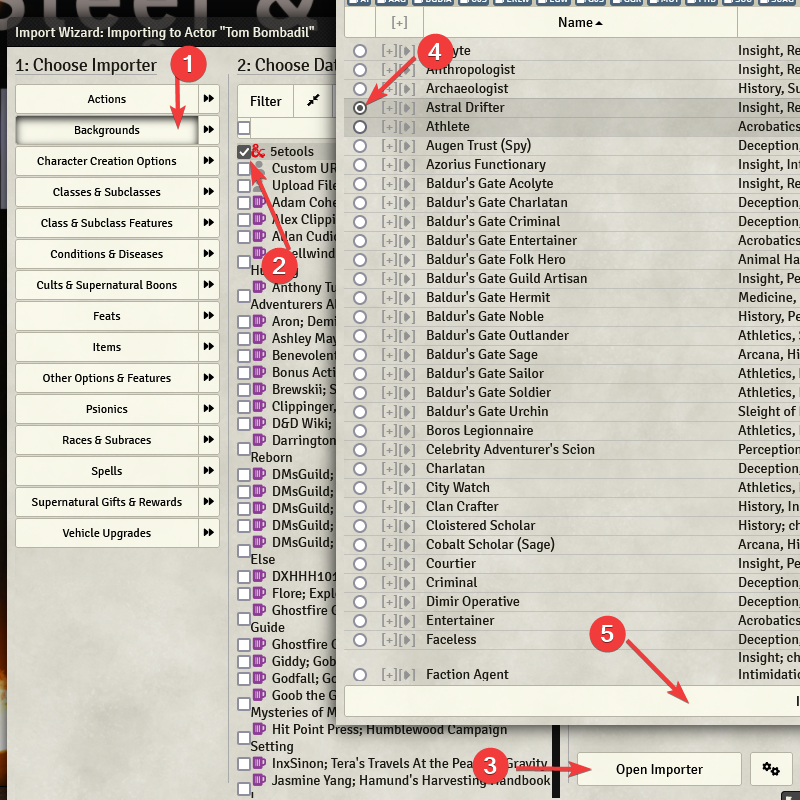
- Do the same for choosing your background. Choose "Backgrounds" on the wizard importer, make sure "5eTools" is selected, Click "Open Importer". Choose the background and Import. You may be given the choice to further customize the details of your background depending on which background you choose. You will also be promted to write or roll personality traits. Finally you can choose your starting equipment.
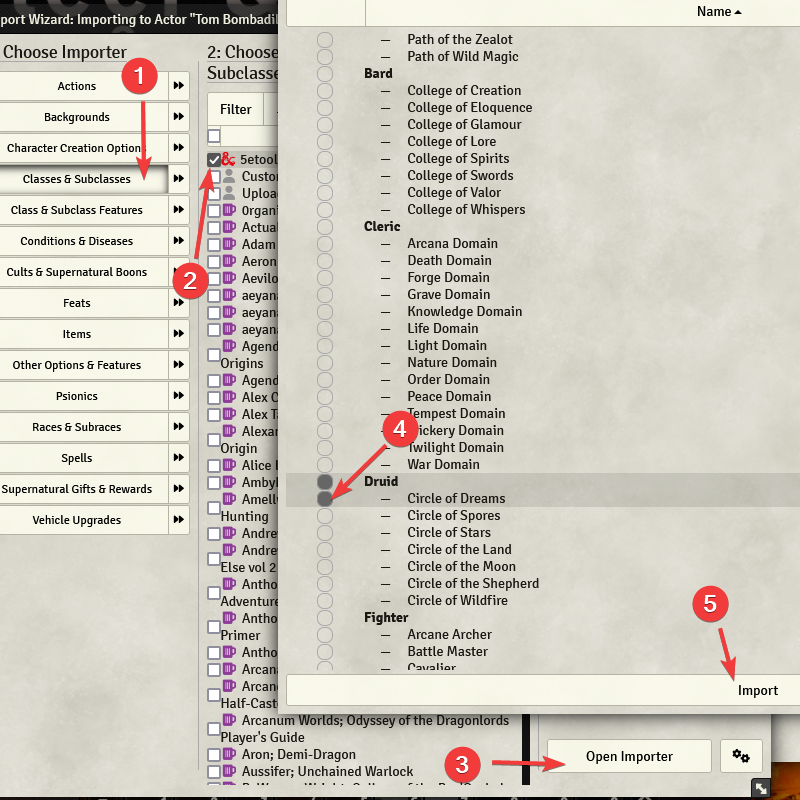
- To choose your class, click the "Class & Subclasses" button on the import wizard. Open the importer for "5eTools", choose your sublcass and import. You will be brought through a series of windows to customize your subclass and choose your starting equipment. Choose Level 1 customizations as we will level up the character later. There is no option to take Max hitpoints, you can manually change your HP at the end.
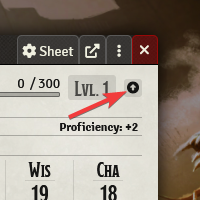
- You can now close the Import Wizard and return to your character sheet. You should now have a level 1 character. Click the up arrow to start leveling your character up. Follow the prompts to level up your character. Feel free to manually enter your alignment, biography, journal and import any equipment you may have that was not added by the wizard. You can also manually update your Max HP if needed.
- Feel free to manually enter your alignment, biography, journal and import any equipment you may have that was not added by the wizard. You can also manually update your Max HP if needed. Character art will be added by your DM.
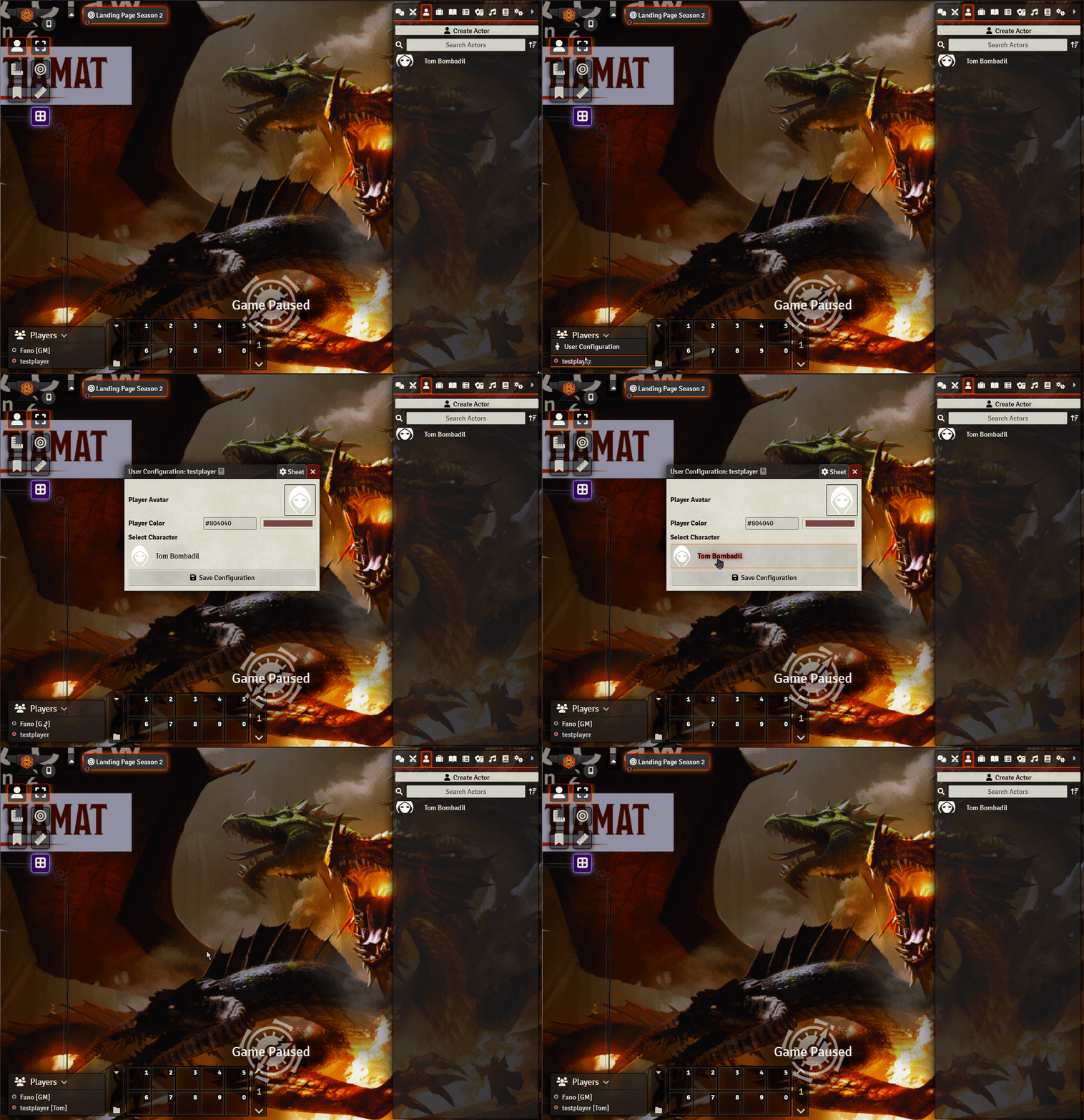
- Lastly you should assign the character to your user. On the bottom left of the screen expand the players section. Right click on your player name. Choose "User Configuration". Select your character and click "Save Configuration". The name of your character should now appear next to your name in brackets.

You are all set!